> ## Documentation Index
> Fetch the complete documentation index at: https://sequence-0fb8d9e6-api_docs.mintlify.site/llms.txt
> Use this file to discover all available pages before exploring further.
# Sequence Analytics API in Dune
> Learn how to use the Sequence Builder analytics feature to query user data for your project with a serverless Cloudflare Worker.
Time to complete: 20-30 minutes
In this guide, we will show you how to use the [Sequence Builder](https://sequence.build/) analytics feature to query information about usage from your users for your specific project leveraging a serverless [Cloudflare Worker](https://www.cloudflare.com/).
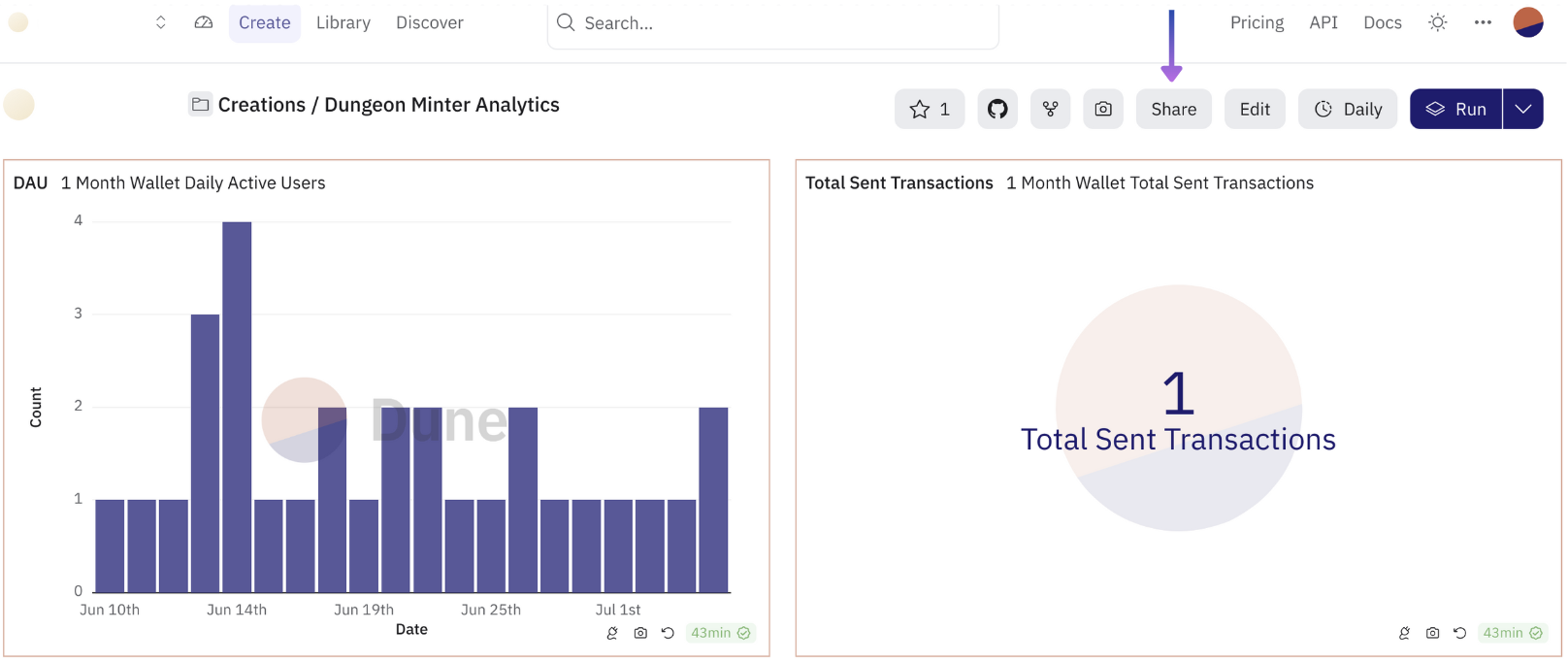
Showcase to your community how well you're doing via a [Dune](https://dune.com/) dashboard to give a sense of connectiveness, or, use the produced API to incorporate intelligent feedback loops into your game driven by user analytics.
You can view an example of the output for this guide [here](https://dune.com/mmhorizon/dungeon-minter-analytics)
1. Access Key Management: Claim a secret access key to interact with the Sequence stack
2. Cloudflare Worker: Create a function that queries the Sequence stack and produces project specific data points
3. Dune Dashboard: Create a view into the data as a shareable dashboard
A reference to the template code can be found
[here](https://github.com/0xsequence-demos/template-cloudflare-worker-wallets-analytics)
## 1. Access Key Management
You'll need to acquire a Secret Access Key for your project in order to authenticate your application with the Sequence stack. Use the following steps:
### Secret Access Key Creation
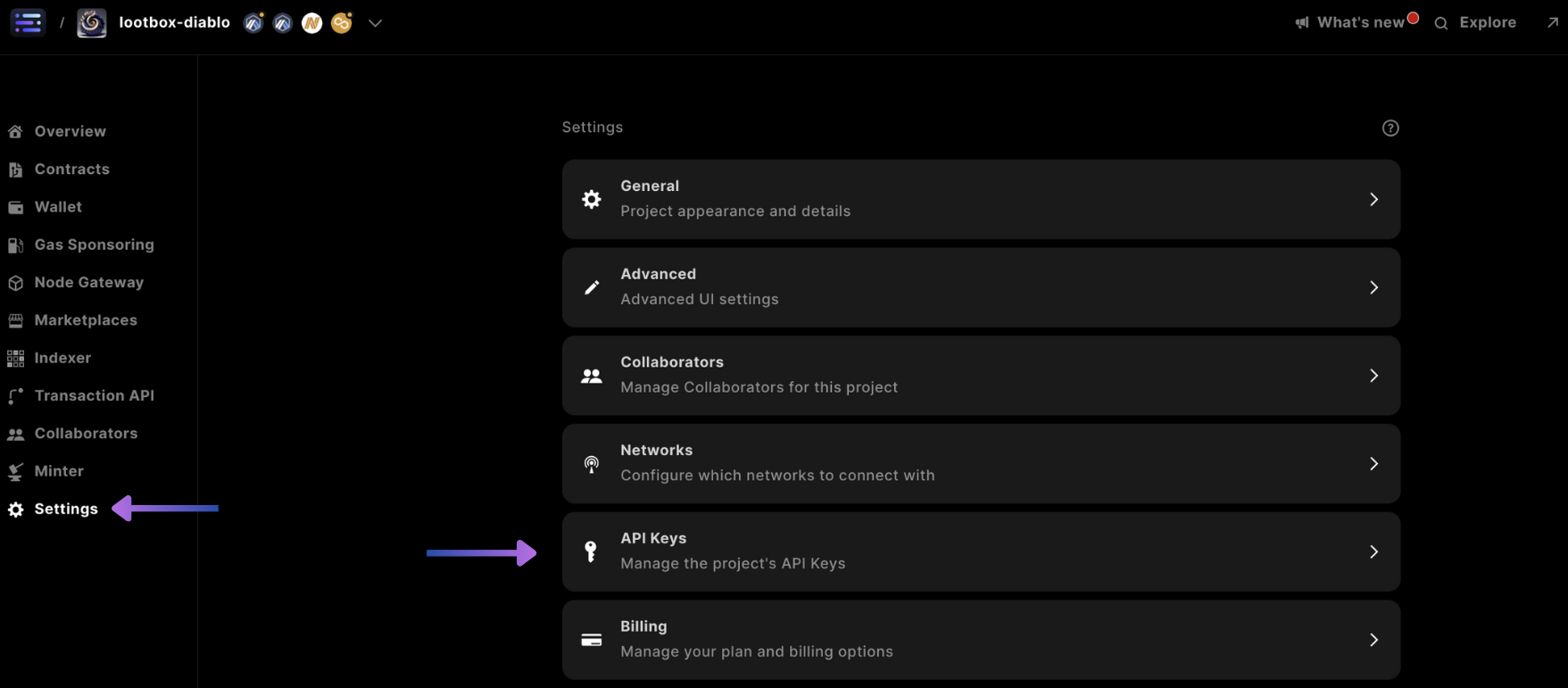
First start by accessing settings, and selecting the API Keys card:
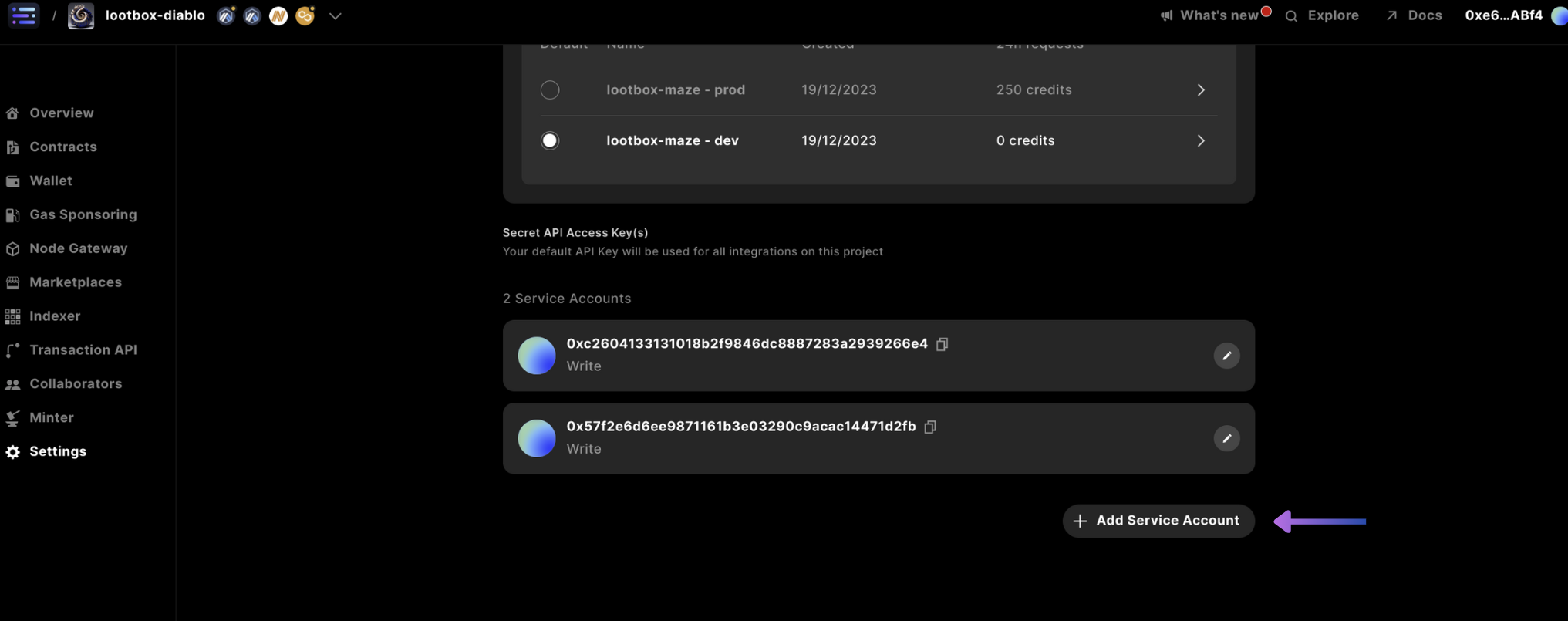
 Scroll down and select `+ Add Service Account`:
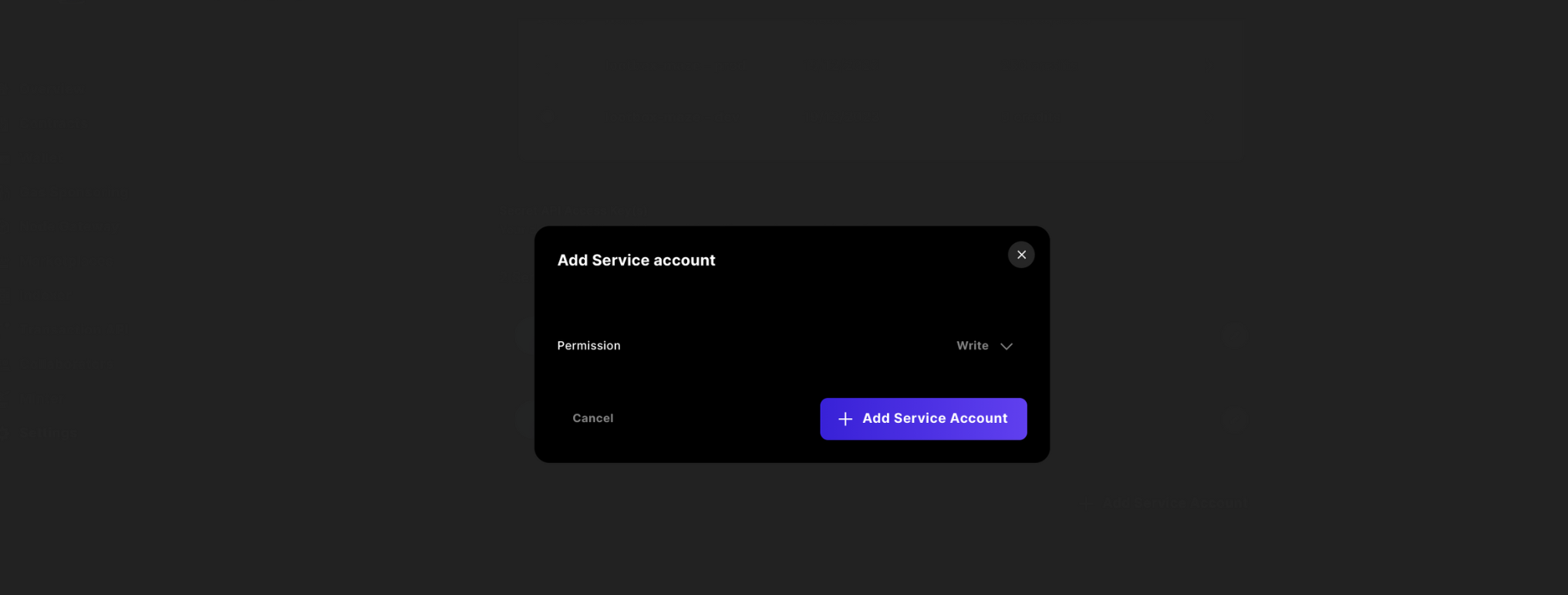
 Then change the permission to `Write`, click on `+ Add Service Account`, and select `Confirm`:
 Finally `copy` the key and store it in a safe location, as you will not have access to this in the future from the Sequence Builder.
## 2. Cloudflare Worker
In this example, we utilize a Cloudflare Worker to experience automatic scaling based on dashboard use, and easy deployments from the cli, but of course you can use your own backend or other serverless alternatives.
In order to create the project from scratch, first create a project with `mkdir`, `cd` into the project, and run `pnpm init` to create a `package.json`.
Make sure wrangler cli is installed in your project and set the `wrangler` keyword as an alias in your local bash session.
```shell theme={null}
pnpm install wrangler --save-dev
alias wrangler='./node_modules/.bin/wrangler'
```
Create an account on the [Cloudflare site](https://cloudflare.com/) and perform a login step to login to your Cloudflare dashboard to connect the Cloudflare platform to your local development environment.
```shell theme={null}
wrangler login
```
Once logged in, initialize the project in the directory with the command `wrangler init` and accept one of the randomly generated project folder names provided that you like, and follow the prompts to initialize your git tracked typescript `"Hello World" Worker` application.
```shell theme={null}
wrangler init
```
To complete this step, you should press enter 4 times after `wrangler init` with the last 2 step answered as `No` to decline git versioning and deployment.
This will clone down a starter repository that can be used to deploy code to the cloud.
Local API Testing
Finally `copy` the key and store it in a safe location, as you will not have access to this in the future from the Sequence Builder.
## 2. Cloudflare Worker
In this example, we utilize a Cloudflare Worker to experience automatic scaling based on dashboard use, and easy deployments from the cli, but of course you can use your own backend or other serverless alternatives.
In order to create the project from scratch, first create a project with `mkdir`, `cd` into the project, and run `pnpm init` to create a `package.json`.
Make sure wrangler cli is installed in your project and set the `wrangler` keyword as an alias in your local bash session.
```shell theme={null}
pnpm install wrangler --save-dev
alias wrangler='./node_modules/.bin/wrangler'
```
Create an account on the [Cloudflare site](https://cloudflare.com/) and perform a login step to login to your Cloudflare dashboard to connect the Cloudflare platform to your local development environment.
```shell theme={null}
wrangler login
```
Once logged in, initialize the project in the directory with the command `wrangler init` and accept one of the randomly generated project folder names provided that you like, and follow the prompts to initialize your git tracked typescript `"Hello World" Worker` application.
```shell theme={null}
wrangler init
```
To complete this step, you should press enter 4 times after `wrangler init` with the last 2 step answered as `No` to decline git versioning and deployment.
This will clone down a starter repository that can be used to deploy code to the cloud.
Local API Testing
At any point in the guide, you can use the `wrangler dev` command in the project folder for
local testing
#### Deploy Test
Finally, `cd` into the randomly generated project folder, and perform a `wrangler deploy` command.
This should print a URL, which you can enter in the browser the URL `https://..workers.dev` to view the `Hello World!` result.
Once you have the project setup, update your `wrangler.toml` with the following variables, where `DAYS` is the time period you're looking at:
```shell theme={null}
[vars]
SECRET_API_ACCESS_KEY = ""
PROJECT_ID =
DAYS =
```
Then include the `Env` type with the variables in `index.ts`:
```ts theme={null}
export interface Env {
PROJECT_ID: number;
SECRET_API_ACCESS_KEY: string;
DAYS: number;
}
```
Replace the existing `fetch` function with the following mocked function calls:
```ts theme={null}
export default {
async fetch(request: Request, env: Env, ctx: ExecutionContext): Promise {
const url = new URL(request.url);
// Handle different endpoints
if (url.pathname === "/dailyActiveUsers") {
return handleDailyWallets(env, request);
} else if (url.pathname === "/totalTransactionsSent") {
return handleTotalTxns(env, request);
} else {
return new Response("No function for this URL", {status: 405});
}
}
};
```
Using the following functions:
```ts theme={null}
const handleDailyWallets = async (env: Env, request: Request) => {
return new Response(JSON.stringify({endpoint: "daily"}), {status: 200});
};
const handleTotalTxns = async (env: Env, request: Request) => {
return new Response(JSON.stringify({endpoint: "total"}), {status: 200});
};
```
Next, include the following utility functions to parse the correct date from the updated value in the `wrangler.toml` for the `DAYS` variable:
```ts theme={null}
const endDate = () => {
const today = new Date();
return today.toISOString().substring(0, 10); // only including the YYYY-MM-DD date
};
const startDate = (env: Env) => {
const today = new Date();
// Format today's date as a string
const daysBefore = new Date(today);
daysBefore.setDate(daysBefore.getDate() - env.DAYS);
// Format the date 7 days before as a string by only including the YYYY-MM-DD date
const daysBeforeString = daysBefore.toISOString().substring(0, 10);
return daysBeforeString;
};
```
Now, handle the `Daily Active Users` request by using the following function, that calls the Sequence Analytics API:
```ts theme={null}
const handleDailyWallets = async (env: Env, request: Request) => {
const resp = await fetch(`https://api.sequence.build/rpc/Analytics/WalletsDaily`, {
method: "POST",
headers: {
"Content-Type": "application/json",
Authorization: `Bearer ${env.SECRET_API_ACCESS_KEY}`
},
body: JSON.stringify({
filter: {
dateInterval: "DAY",
endDate: endDate(),
projectId: env.PROJECT_ID,
startDate: startDate(env)
}
})
});
const data: any = await resp.json();
return new Response(JSON.stringify(data.walletStats), {status: 200});
};
```
Finally, add the following function for the `Total Transactions Sent`:
```ts theme={null}
const handleTotalTxns = async (env: Env, request: Request) => {
const resp = await fetch(
`https://api.sequence.build/rpc/Analytics/WalletsTxnSentTotal`,
{
method: "POST",
headers: {
"Content-Type": "application/json",
Authorization: `Bearer ${env.SECRET_API_ACCESS_KEY}`
},
body: JSON.stringify({
filter: {
dateInterval: "DAY",
endDate: endDate(),
projectId: env.PROJECT_ID,
startDate: startDate(env)
}
})
}
);
const data: any = await resp.json();
return new Response(JSON.stringify(data.walletStats), {status: 200});
};
```
Included in the Sequence Analytics API is the days with zero activity removed from the response. However, if you want to include days with zero data in your Dune queries to showcase the spacing of time in relation of data, you can use the following function to complete the days not showing data in the correct date format:
```typescript theme={null}
const fillMissingDates = (data: any[], startDate: string, endDate: string) => {
const filledData: {value: number; label: string}[] = [];
const start = new Date(startDate);
const end = new Date(endDate);
for (let d = new Date(start); d <= end; d.setDate(d.getDate() + 1)) {
const dateString = d.toISOString().substring(0, 10);
const existingData = data.find((entry) => entry.label === dateString);
if (existingData) {
filledData.push(existingData);
} else {
filledData.push({value: 0, label: dateString});
}
}
return filledData;
};
```
Then for **both** call responses include the following method call with the `walletStats` data passed in:
```typescript theme={null}
...
const data: any = await resp.json();
const filledData = fillMissingDates(data.walletStats, startDate(env), endDate());
return new Response(JSON.stringify(filledData), { status: 200 });
}
```
Now you can test your API by calling the respective paths with host name (`/dailyActiveUsers` & `/totalTransactionsSent`) once you have redeployed with `wrangler deploy`.
For more examples of endpoints available through the Analytics API, please check out the
[overview](/api-references/analytics/overview) page.
## 3. Dune Dashboard
First, sign up to [Dune](https://dune.com/)
Access your account at `https://dune.com/` and select the `Create` button and `New query`.
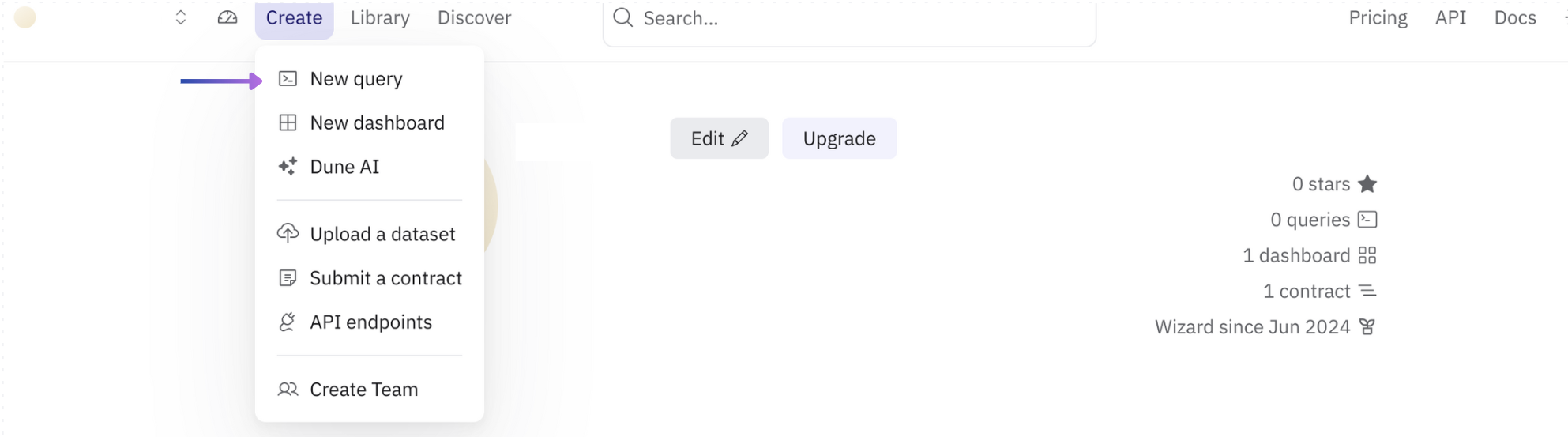 Input the following SQL query in the console, and select `Run`:
```sql theme={null}
SELECT
t.label as "Date", -- converting the label to "Date"
t.value as "Count" -- converting the value field to "Count"
FROM UNNEST(
TRY_CAST(
JSON_PARSE(HTTP_GET('https:///dailyActiveUsers')) AS ARRAY(ROW(label VARCHAR, value DOUBLE))
)
) AS t(label, value)
```
Once the results have been returned, create a `New visualization`.
Then, select `Add visualization` after the default `Bar chart` is selected from the dropdown (but feel free to customize this).
Input the following SQL query in the console, and select `Run`:
```sql theme={null}
SELECT
t.label as "Date", -- converting the label to "Date"
t.value as "Count" -- converting the value field to "Count"
FROM UNNEST(
TRY_CAST(
JSON_PARSE(HTTP_GET('https:///dailyActiveUsers')) AS ARRAY(ROW(label VARCHAR, value DOUBLE))
)
) AS t(label, value)
```
Once the results have been returned, create a `New visualization`.
Then, select `Add visualization` after the default `Bar chart` is selected from the dropdown (but feel free to customize this).
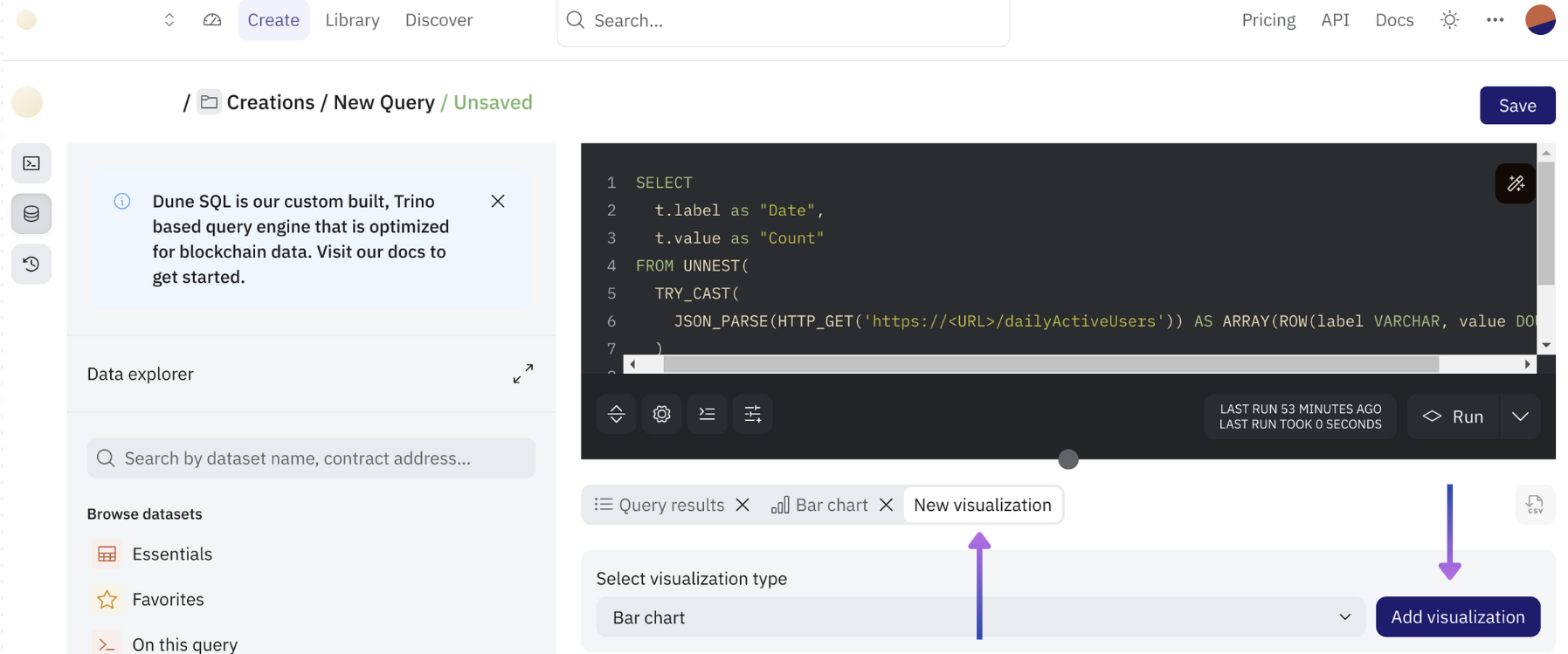 Finally, click `Save` and add a name to your query.
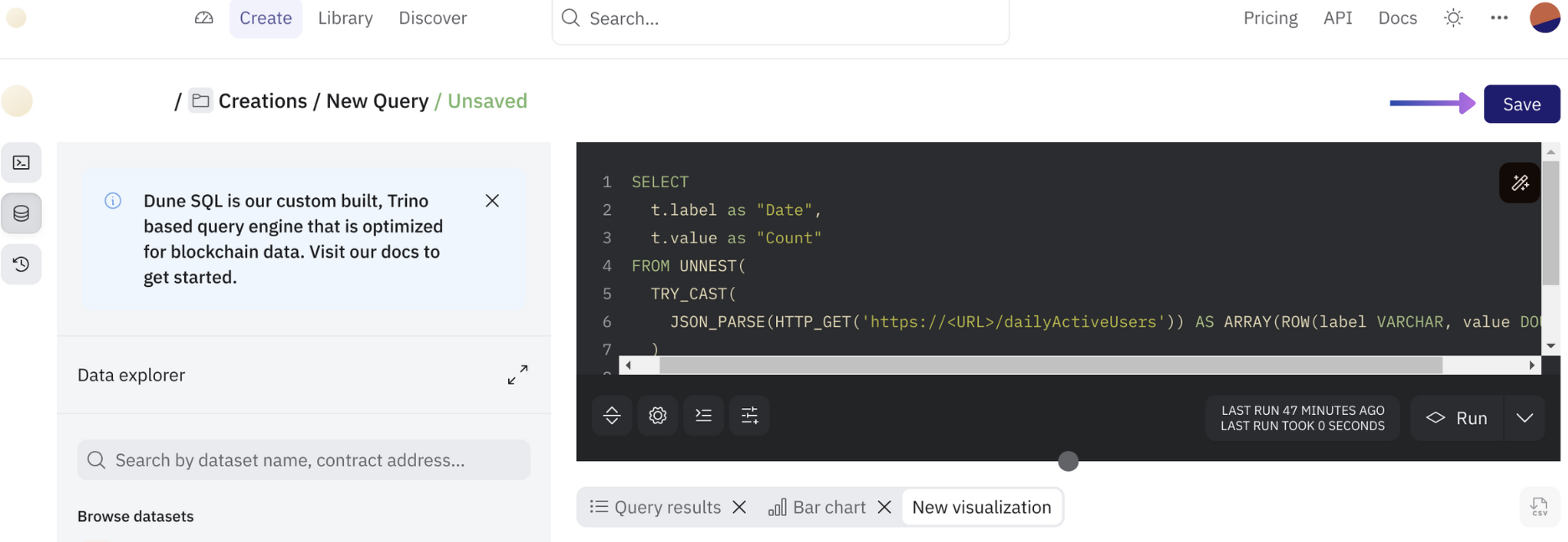 Repeat the steps from the [previous step](/guides/analytics-guide#create-query) and use the following SQL query:
```sql theme={null}
SELECT
t.label,
t.value
FROM UNNEST(
TRY_CAST(
JSON_PARSE(HTTP_GET('https:///totalTransactionsSent')) AS ARRAY(ROW(label VARCHAR, value DOUBLE))
)
) AS t(label, value)
```
Once the results have been returned, create a `New visualization`.
Then, select `Add visualization` and scroll down to `Counter` to create a counter widget that returns the absolute total returned from the API.
Access the buttons that read `Create` > `New dashboard` and input a name for the new dashboard.
Repeat the steps from the [previous step](/guides/analytics-guide#create-query) and use the following SQL query:
```sql theme={null}
SELECT
t.label,
t.value
FROM UNNEST(
TRY_CAST(
JSON_PARSE(HTTP_GET('https:///totalTransactionsSent')) AS ARRAY(ROW(label VARCHAR, value DOUBLE))
)
) AS t(label, value)
```
Once the results have been returned, create a `New visualization`.
Then, select `Add visualization` and scroll down to `Counter` to create a counter widget that returns the absolute total returned from the API.
Access the buttons that read `Create` > `New dashboard` and input a name for the new dashboard.
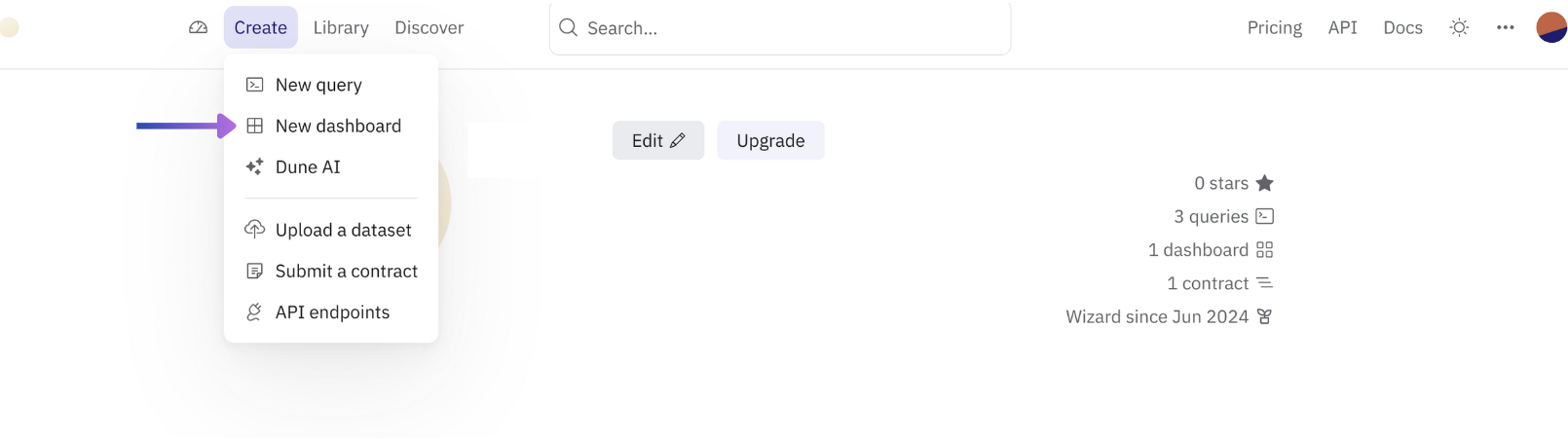 Once created add the previous 2 queries by selecting `Edit` and `Add visualization`.
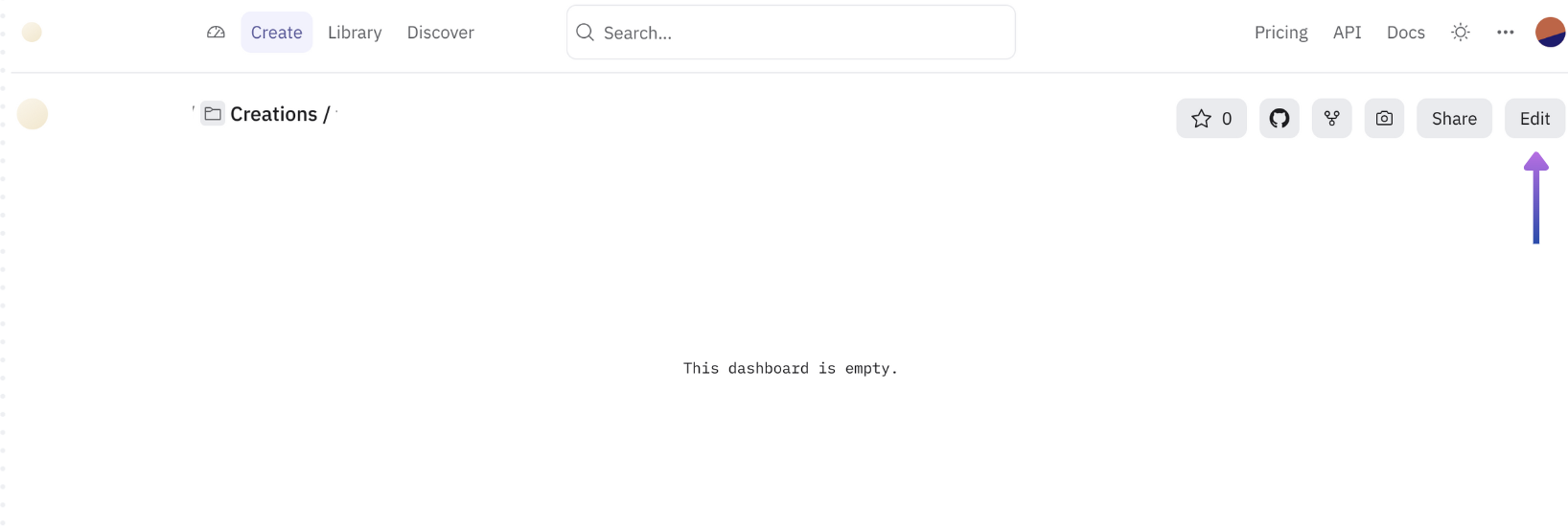
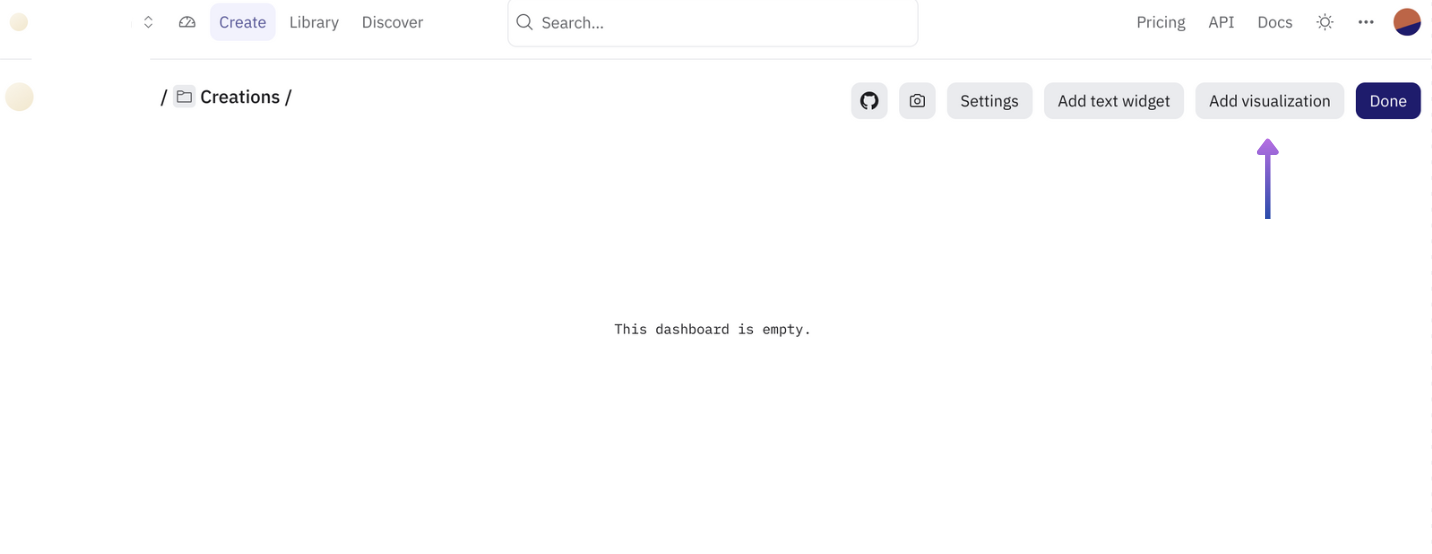 Once for each query, search for the name in the modal and select `Add` for each query, then `Done` in the modal, and `Done` in the dashboard.
Congratulations, you're now ready to share your project's data usage with your teammates or community. Finish by clicking the `Share` button.
Once for each query, search for the name in the modal and select `Add` for each query, then `Done` in the modal, and `Done` in the dashboard.
Congratulations, you're now ready to share your project's data usage with your teammates or community. Finish by clicking the `Share` button.